# Getting Started
# Account Setup and Access
To become a PSNC user and use its resources, there are a few simple steps to follow. The process begins with registration or login to the PRACE-LAB portal, available on the dedicated website https://pcss.plcloud.pl/. Registration requires providing contact information, creating a login and password. After submitting the form, you will need to verify your email address
The next step is to add an affiliation, which confirms the user's authorization to use the selected resources. Affiliations can be of different types, such as student, academic or business, and the verification process depends on the type and requires administrator approval.
Once you have successfully registered and added the appropriate affiliation, you can start creating computing spaces and using available services, such as computing projects. The portal also offers the ability to configure SSH keys for secure access to systems.
The portal also allows you to manage users within the spaces you have created, submit tickets in case of problems, and view available service offerings. Each of these functions is intuitive and described in detail on the portal's page, making it easy to use PSNC resources.
The following link shows more details:
how to become a user (opens new window)
# User Environment
# Connecting to the Supercomputer
# Log in via Portal
To log in via the portal to the computing cluster.
- We must first log into the portal https://pcss.plcloud.pl/ (opens new window)
- select our service
- then we click Go to and Direct ssh connection to...
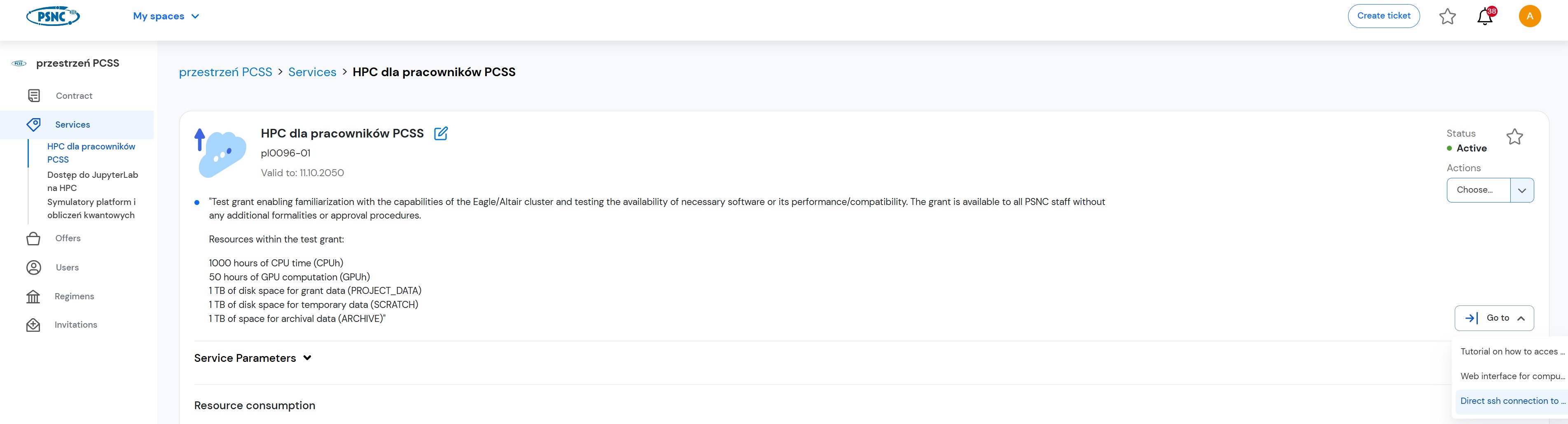
- we will then be automatically logged into our account on the cluster
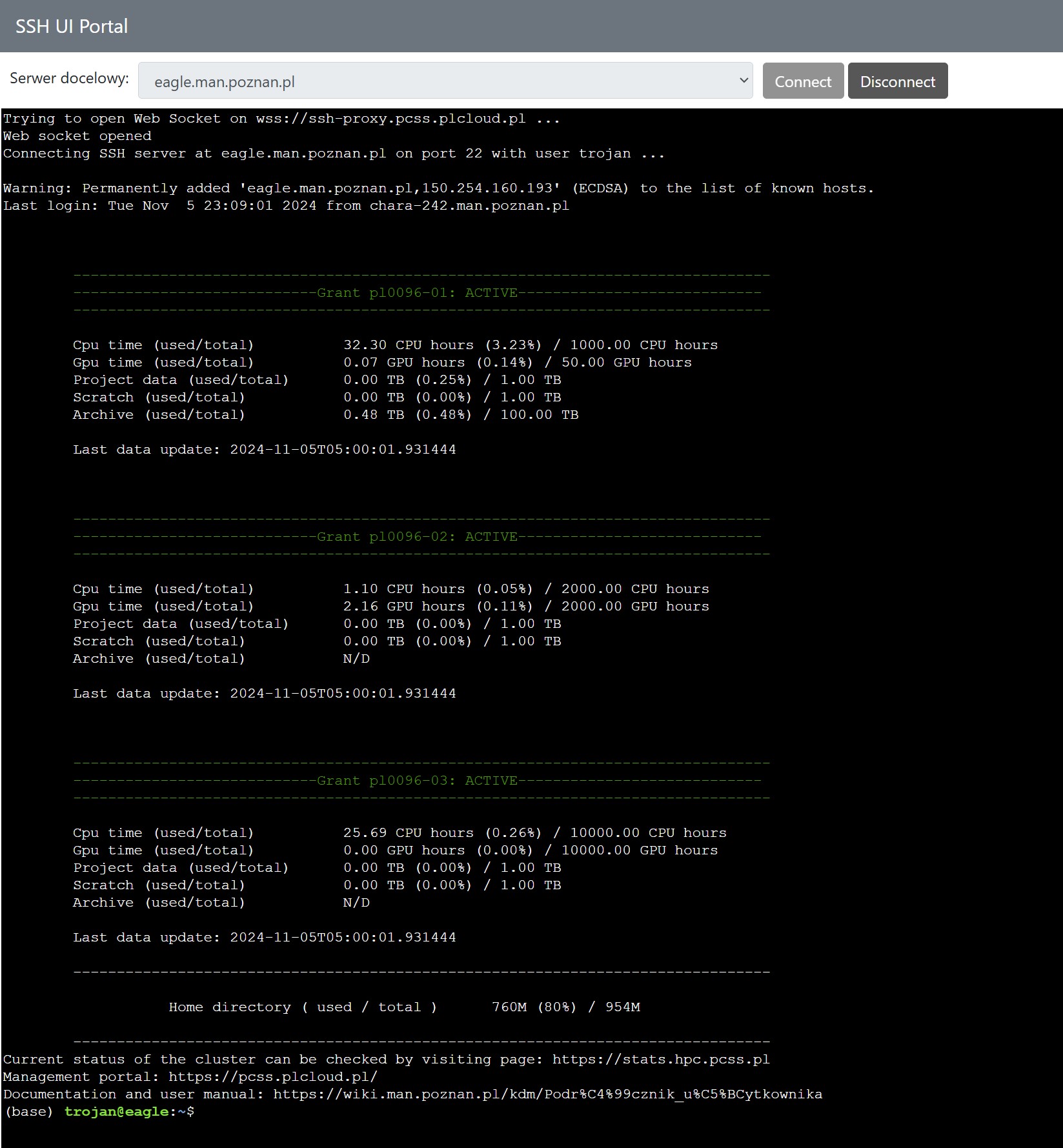
- you can also enter directly through the site https://ssh-ui.pcss.plcloud.pl/ (opens new window)
# Log in via SSH Client
Logging in to computing machines
To log on to the computing machines we must use the SSH protocol for this purpose
To log into the cluster, you must first create your SSH key and import it into the portal (Enabling SSH Access (opens new window))
# Windows
In Windows, download the Putty application (http://www.putty.org (opens new window))
# PuTTY
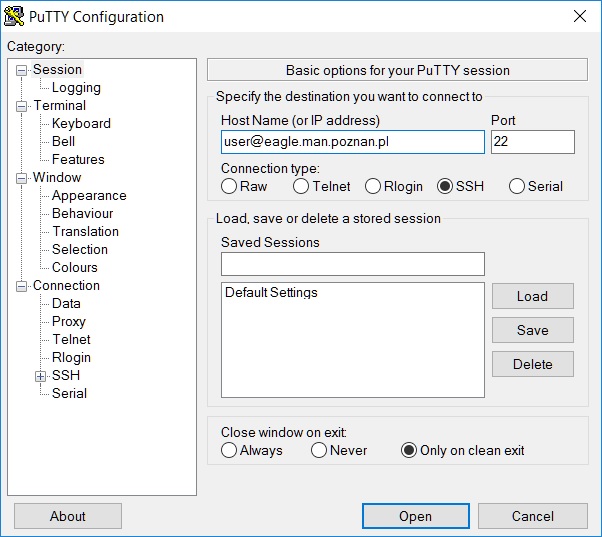
to log in to the cluster using putty you should first add your SSH key in the credentials tab
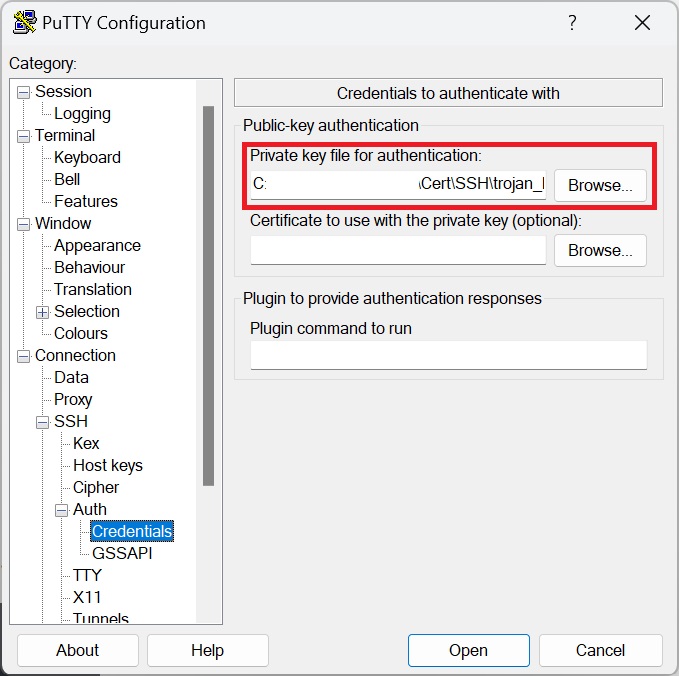
Then enter your user name and the address of the computing machine in the HostName field, e.g.
user@eagle.man.poznan.pl
# WinSCP
To log in using Winspc, you need to launch the client and configure the connection to the cluster using the SSH key pair created earlier, whose public key was added in https://pcss.plcloud.pl/
- We run the client
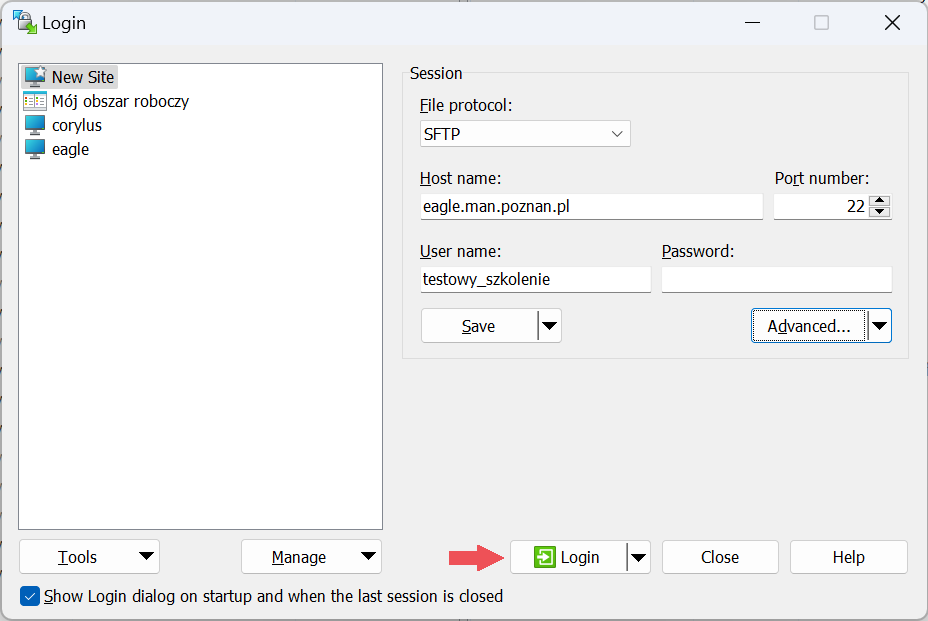
- in the Host name field enter eagle.man.poznan.pl
- in the User name field enter the user name
- click on Advanced
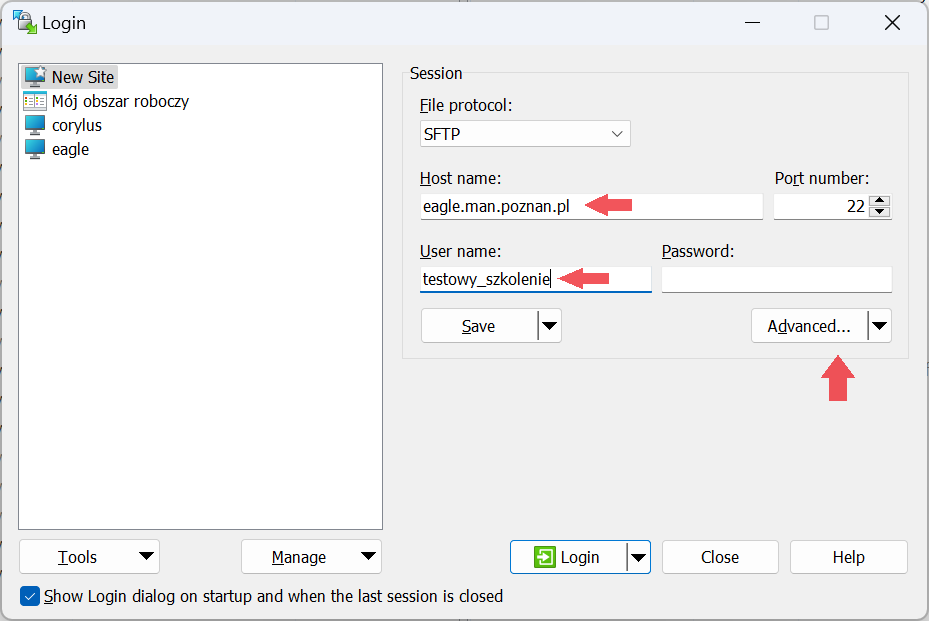
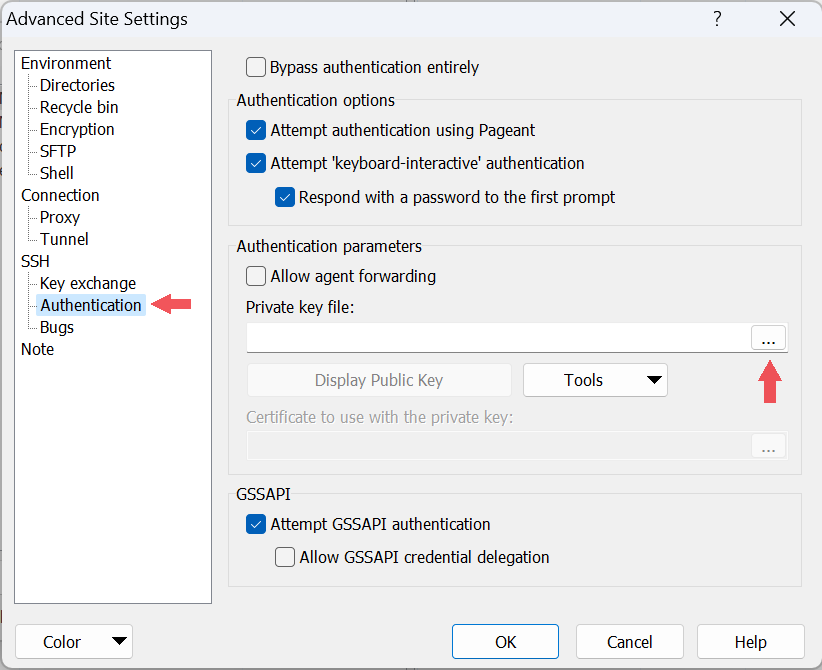
- select the SSH and Authentication tab
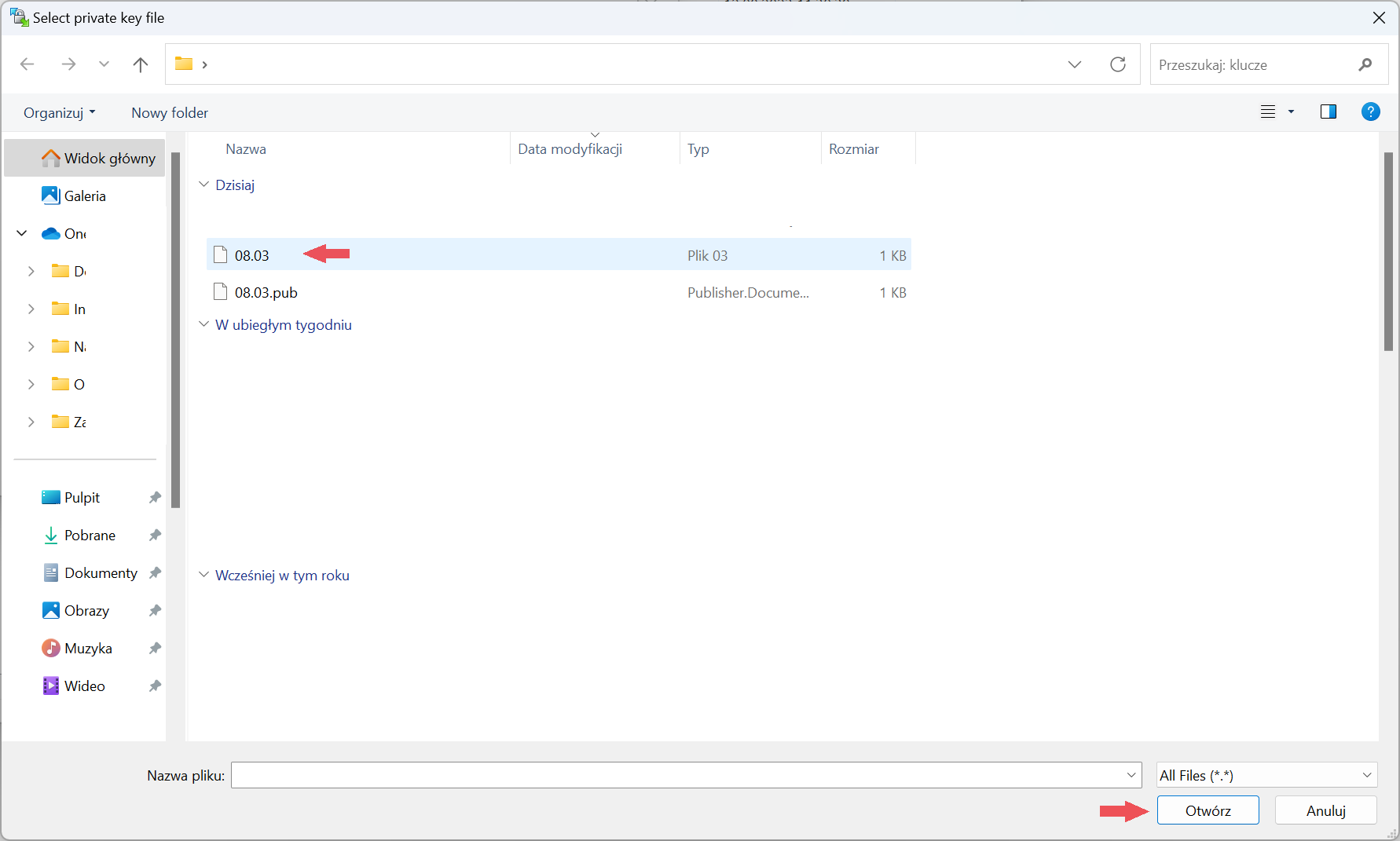
- Add the previously generated private key
- we choose the location of our private key from the local disk
- we agree to convert the private key to PuTTY format
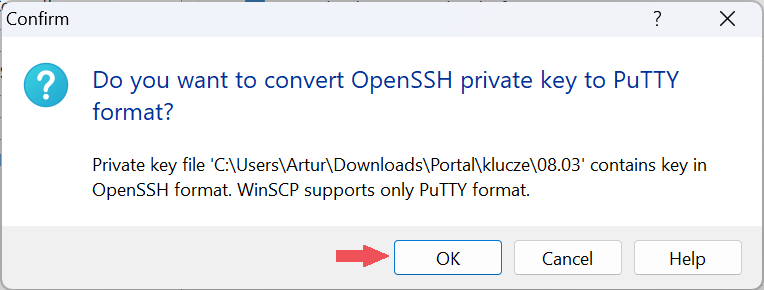
- Save the converted SSH key to disk

- then return to the main login panel and log in to the cluster
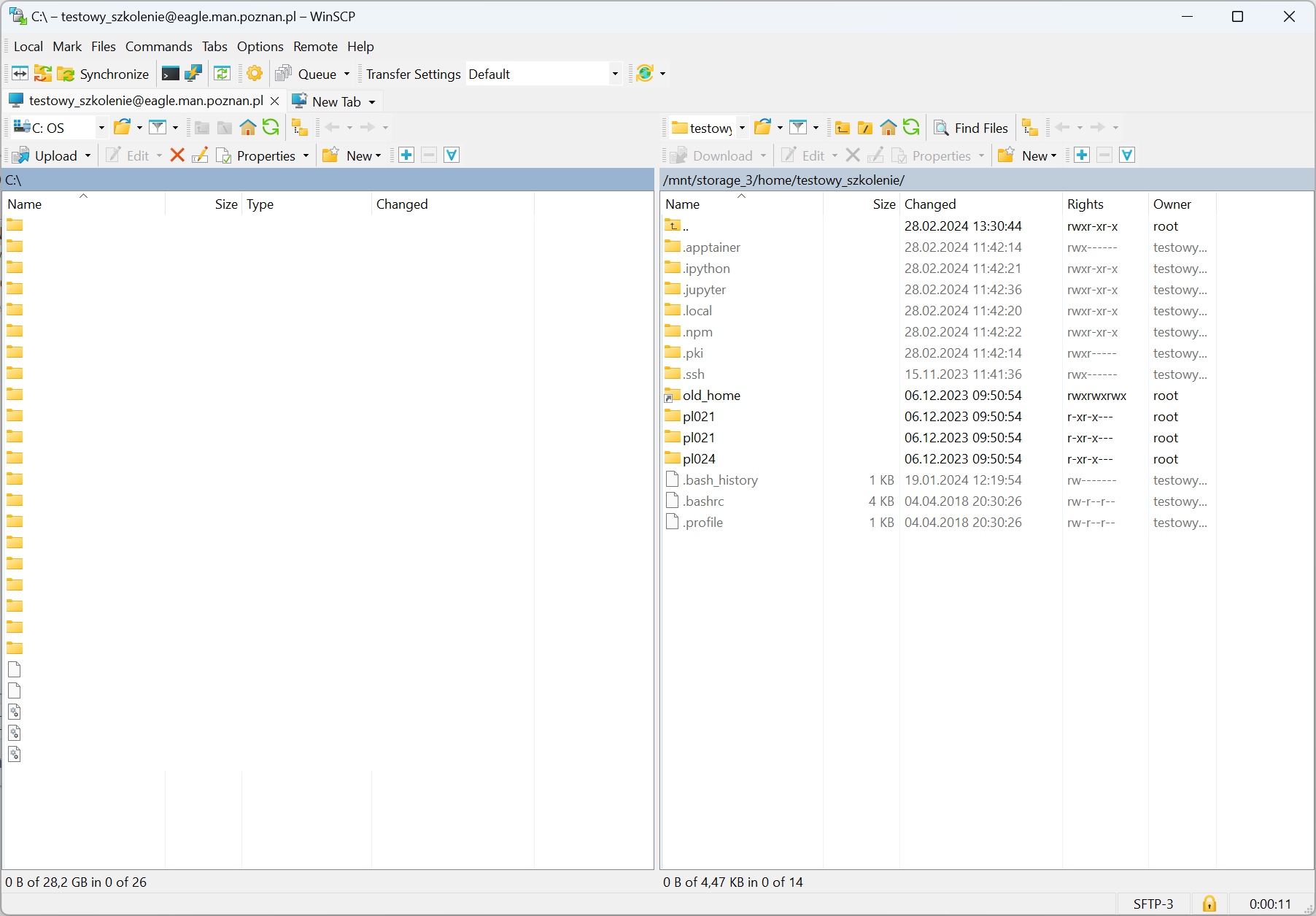
- a window appears with the listed directories available on the cluster
- we can easily copy data from the local disk directly to the cluster
# Linux
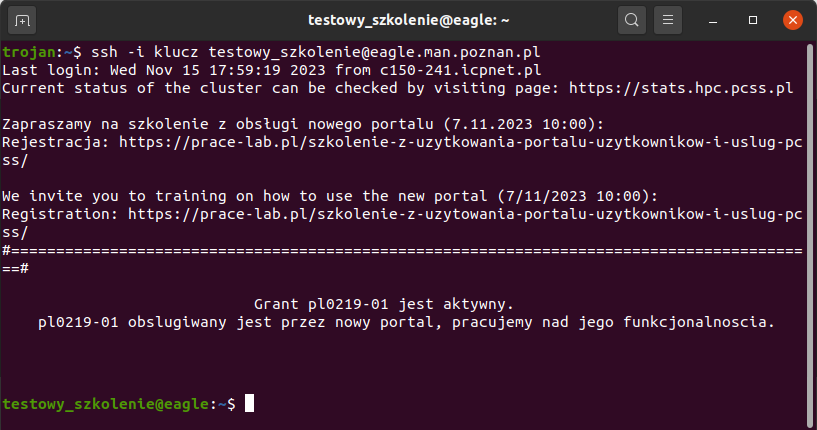
To log in to the cluster on Linux, run the command with your generated private key, your username, and the address of the cluster
ssh -i key user@eagle.man.poznan.pl