
# JupyterLab
# Install on cluster
To install and run JupyterLab Server, proceed as follows
- log on to the eagle/altair cluster heandode
- generate yourself an interactive session on nodes, with the necessary resources. e.g. like this:
trojan@eagle:~$ srun -N1 --ntasks-per-node=24 --mem=70gb --time=48:00:00                                                                                                              --pty /bin/bash
srun: job 25964247 queued and waiting for resources
srun: job 25964247 has been allocated resources
trojan@e1280:~$
- in the directory grant_XXX/project_data/$USER download and install anaconda software
trojan@e1280:~$ wget wget https://repo.anaconda.com/archive/Anaconda3-2022.10-Linux-x86_64.sh
--2022-12-22 14:32:17--  http://wget/
Resolving wget (wget)... failed: Name or service not known.
wget: unable to resolve host address ‘wget’
--2022-12-22 14:32:17--  https://repo.anaconda.com/archive/Anaconda3-2022.10-Linux-x86_64.sh
Resolving repo.anaconda.com (repo.anaconda.com)... 104.16.130.3, 104.16.131.3, 2606:4700::6810:8303, ...
Connecting to repo.anaconda.com (repo.anaconda.com)|104.16.130.3|:443... connected.
HTTP request sent, awaiting response... 200 OK
Length: 773428196 (738M) [application/x-sh]
Saving to: ‘Anaconda3-2022.10-Linux-x86_64.sh’

Anaconda3-2022.10-Linux-x86_64.sh               100%[================================
====================================================================>] 737.60M   197MB/s    in 4.1s

2022-12-22 14:32:22 (181 MB/s) - ‘Anaconda3-2022.10-Linux-x86_64.sh’ saved [773428196/773428196]

FINISHED --2022-12-22 14:32:22--
Total wall clock time: 5.1s
Downloaded: 1 files, 738M in 4.1s (181 MB/s)
(base) trojan@e1280:~$./Anaconda3-2022.10-Linux-x86_64.sh
- declare the variable NUMEXPR_MAX_THREADS to be 24
(base) trojan@e1280:~$ export NUMEXPR_MAX_THREADS=24
- after initialisation, start jupyter-lab (select port from the range 9000 - 50000 ):
(base) trojan@e1280:~$ jupyter-lab --no-browser --port=9999 --ip=0.0.0.0
[I 2022-12-22 13:21:11.929 ServerApp] jupyterlab | extension was successfully linked.
[I 2022-12-22 13:21:15.518 ServerApp] nbclassic | extension was successfully linked.
[I 2022-12-22 13:21:15.518 ServerApp] panel.io.jupyter_server_extension | extension was successfully linked.
[I 2022-12-22 13:21:15.710 ServerApp] nbclassic | extension was successfully loaded.
[I 2022-12-22 13:21:15.711 LabApp] JupyterLab extension loaded from /home/users/trojan/anaconda3/lib/python3.9/site-packages/jupyterlab
[I 2022-12-22 13:21:15.711 LabApp] JupyterLab application directory is /home/users/trojan/anaconda3/share/jupyter/lab
[I 2022-12-22 13:21:15.716 ServerApp] jupyterlab | extension was successfully loaded.
[I 2022-12-22 13:21:15.717 ServerApp] panel.io.jupyter_server_extension | extension was successfully loaded.
[I 2022-12-22 13:21:15.718 ServerApp] Serving notebooks from local directory: /home/users/trojan
[I 2022-12-22 13:21:15.718 ServerApp] Jupyter Server 1.18.1 is running at:
[I 2022-12-22 13:21:15.718 ServerApp] http://e1280:9999/lab?token=f3e54adf1c4880885b501a59f5cc374c42e429f70be77aa1
[I 2022-12-22 13:21:15.718 ServerApp]  or http://127.0.0.1:9999/lab?token=f3e54adf1c4880885b501a59f5cc374c42e429f70be77aa1
[I 2022-12-22 13:21:15.718 ServerApp] Use Control-C to stop this server and shut down all kernels (twice to skip confirmation).
[C 2022-12-22 13:21:15.726 ServerApp]

    To access the server, open this file in a browser:
        file:///home/users/trojan/.local/share/jupyter/runtime/jpserver-6499-open.html
    Or copy and paste one of these URLs:
        http://e1280:9999/lab?token=f3e54adf1c4880885b501a59f5cc374c42e429f70be77aa1
     or http://127.0.0.1:9999/lab?token=f3e54adf1c4880885b501a59f5cc374c42e429f70be77aa1
- then set up ssh tunneling using the command ( the node number in the command should match the one assigned earlier in the interactive session , in this case e1280). On Linux, start a new terminal and type the following command. On Windows, on the other hand, use a text-based SSH client such as PowerShell and execute the command:
ssh -L 9999:e1280:9999 trojan@eagle.man.poznan.pl
- after the tunneling has been set up, we launch the browser and type in the address:
http://127.0.0.1:9999/
we will be asked to provide a key (token), then you should provide the key value that was automatically generated by the JupyterLab server in our case f3e54adf1c4880885b501a59f5cc374c42e429f70be77aa1
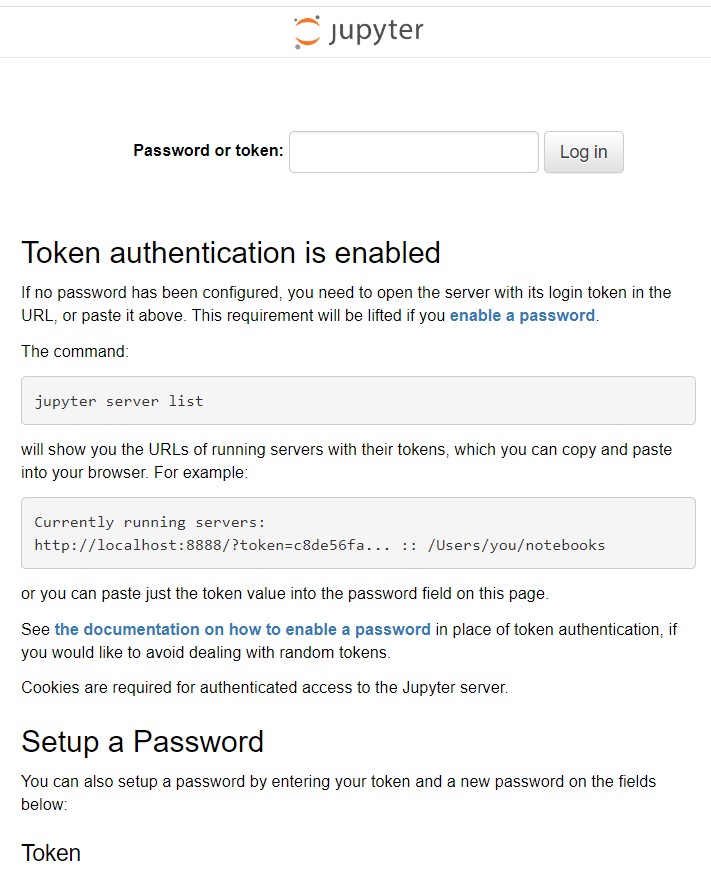
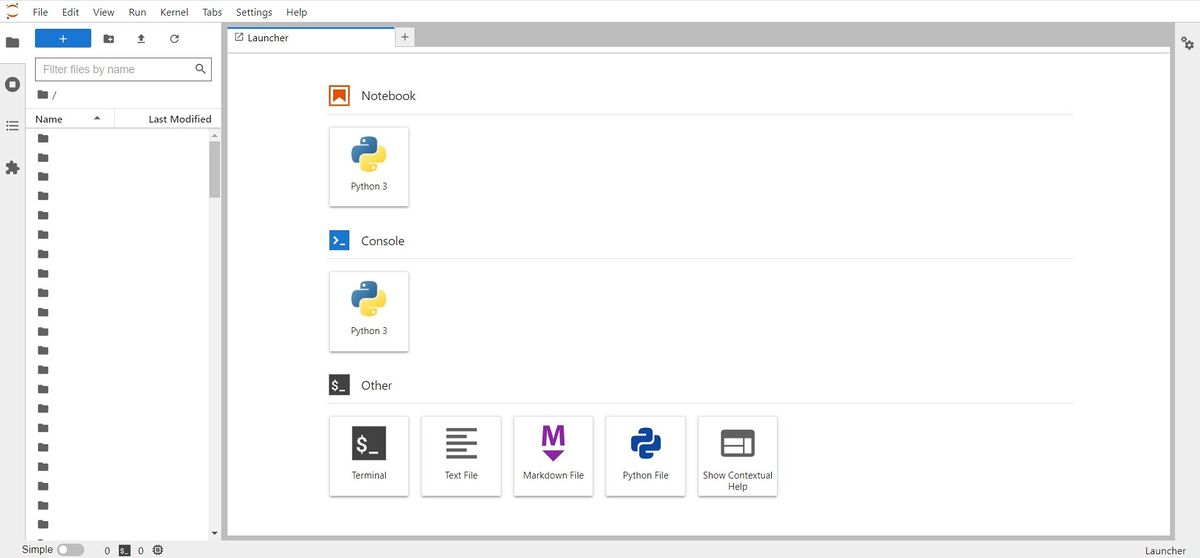
JupyterLab will then be launched
# JupyterLab via QCG Portal
To start JupyterLab server you should proceed as follows
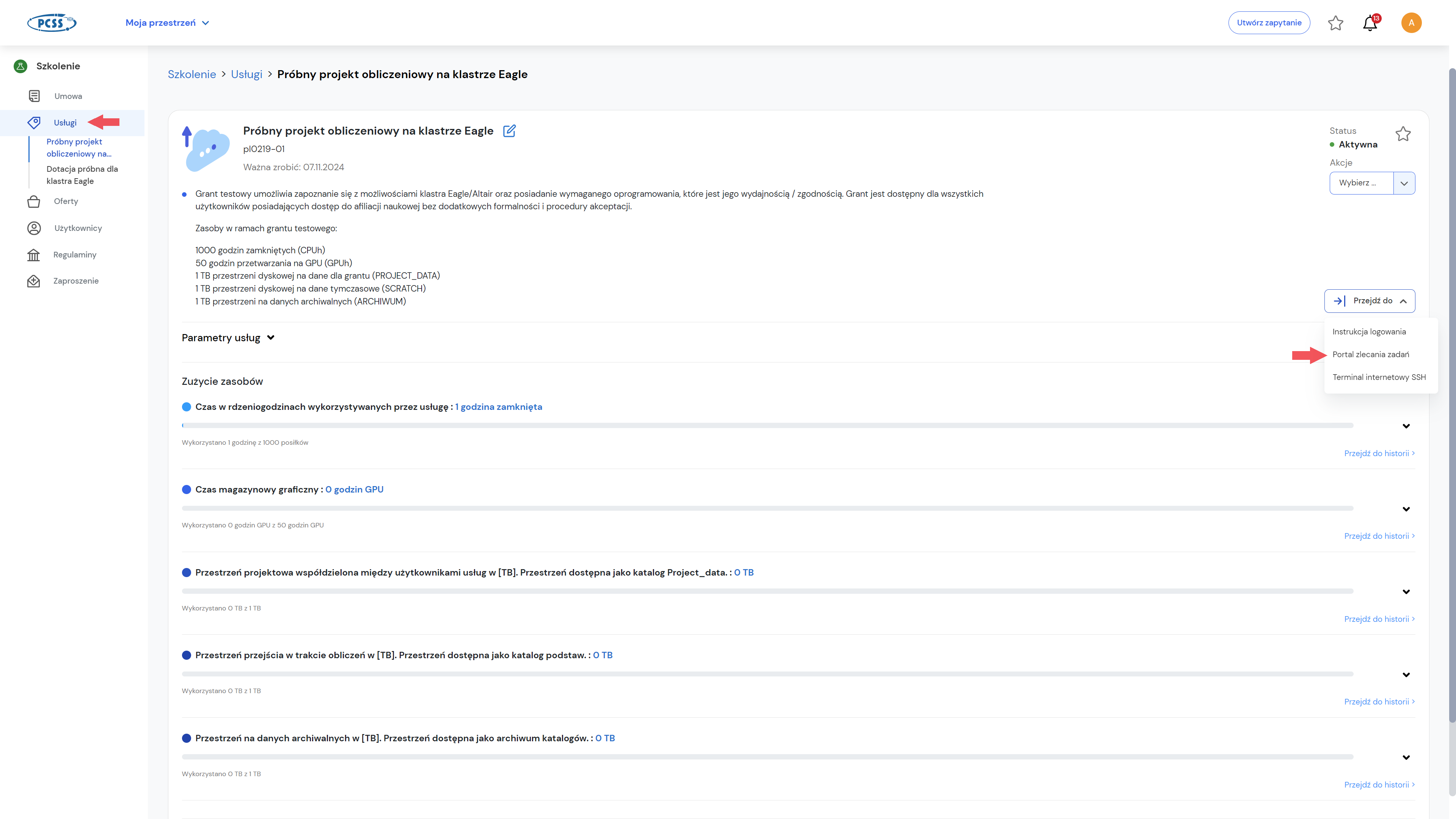
- you should first:
log into your account at https://pcss.plcloud.pl/
choose your space where you have declared HPC services
select the appropriate service
click the Go to button
select Task Order Portal from the drop-down menu
- After logging in to the QCG Task Order Portal, select Task Order.
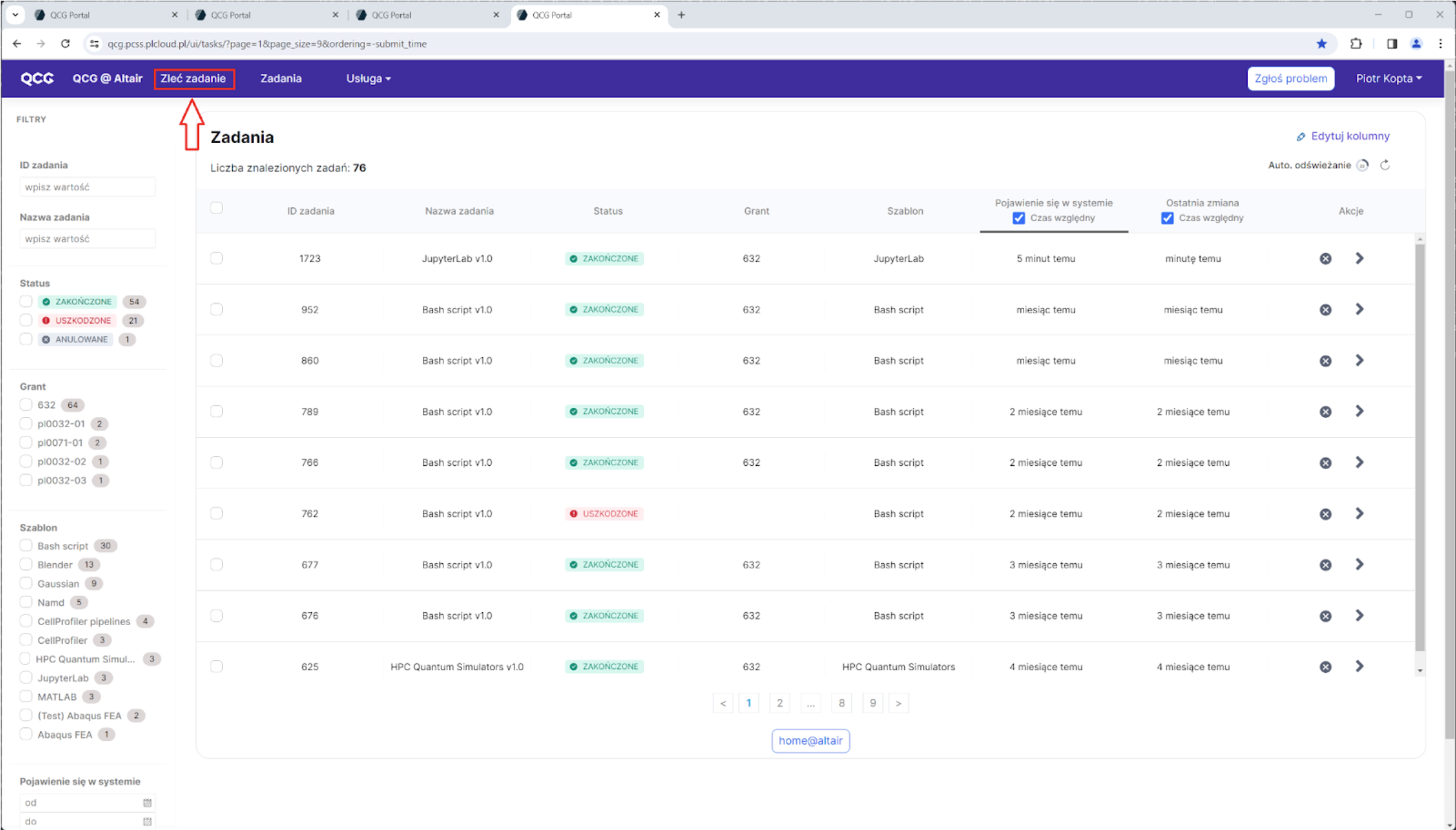
- Select the JupyterLab template and click Submit Task
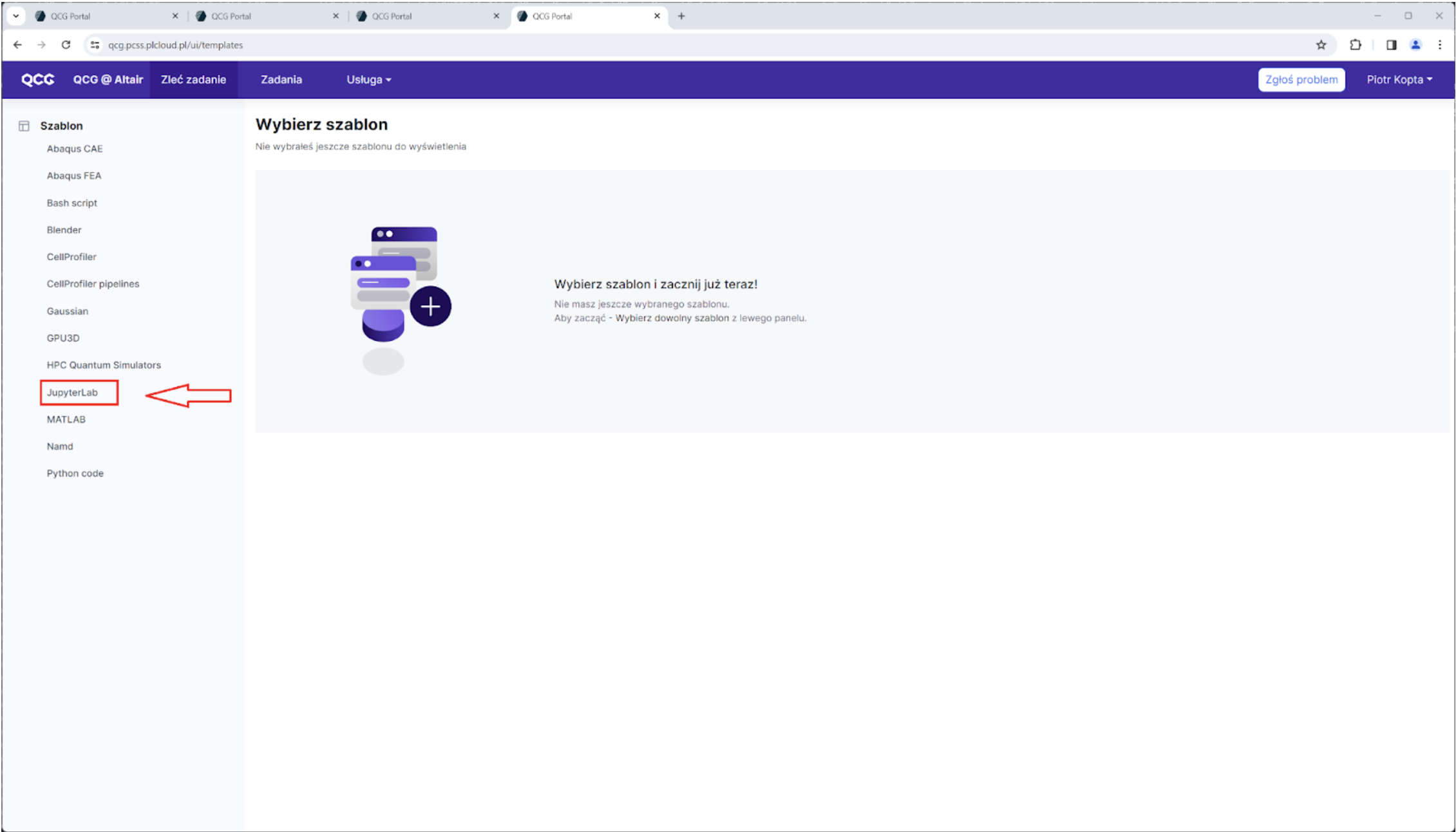
- Application form
- in the form we can attach a file that will be placed in the working directory where the JupyterLab service will be launched
- we can attach files both from our local computer and from the home directory of the Altair cluster
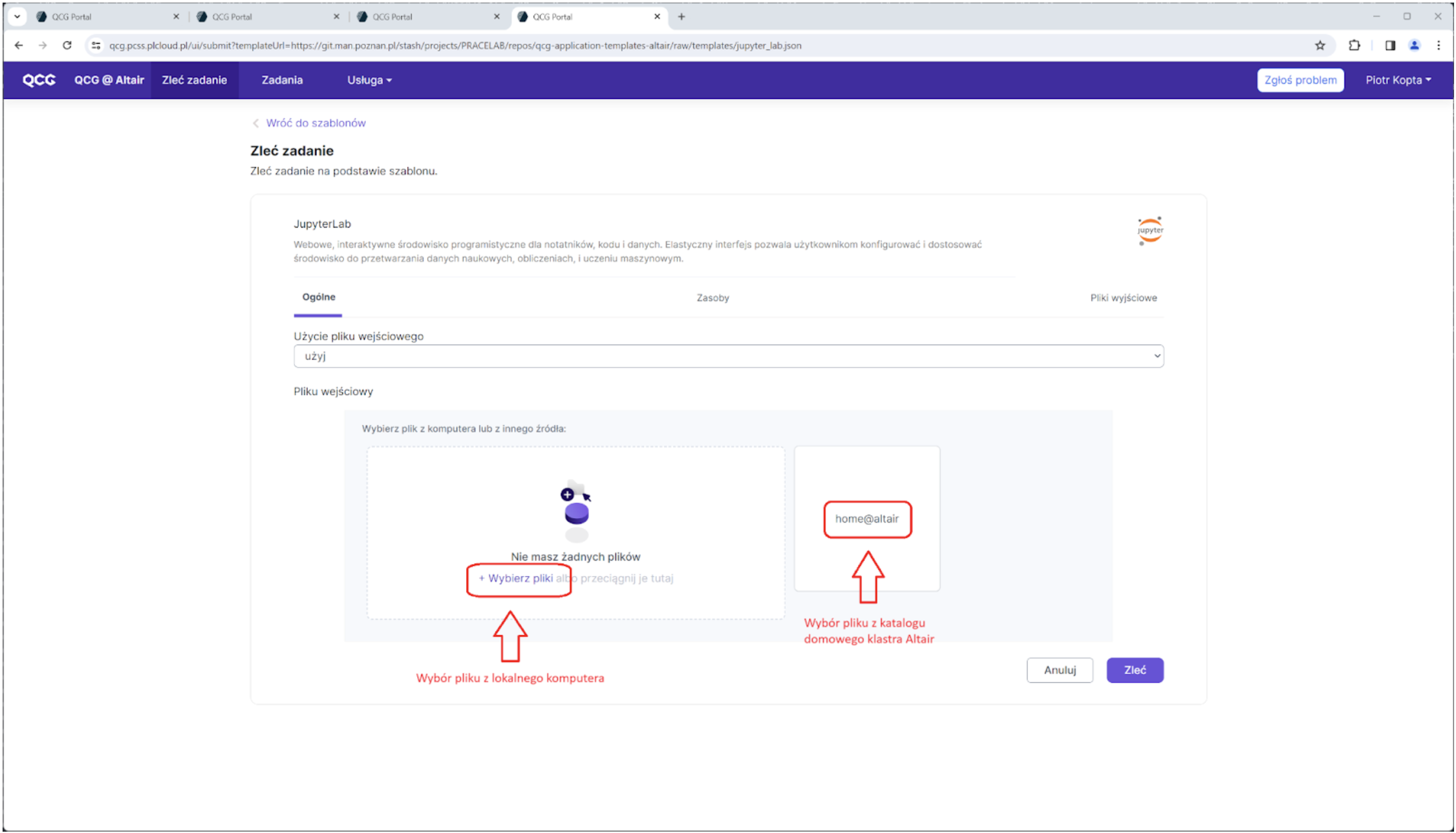
- in the Resources tab we can define the length of the task as well as the number of resources to which JupyterLab will have access
- by default, when the JupyterLab application terminates, the working directory of the task is saved in the project_data space of the grant under which the task was launched; if you do not want to save the working directory, you can uncheck this option in the Output files tab
- after completing the form, order the task using the Order button
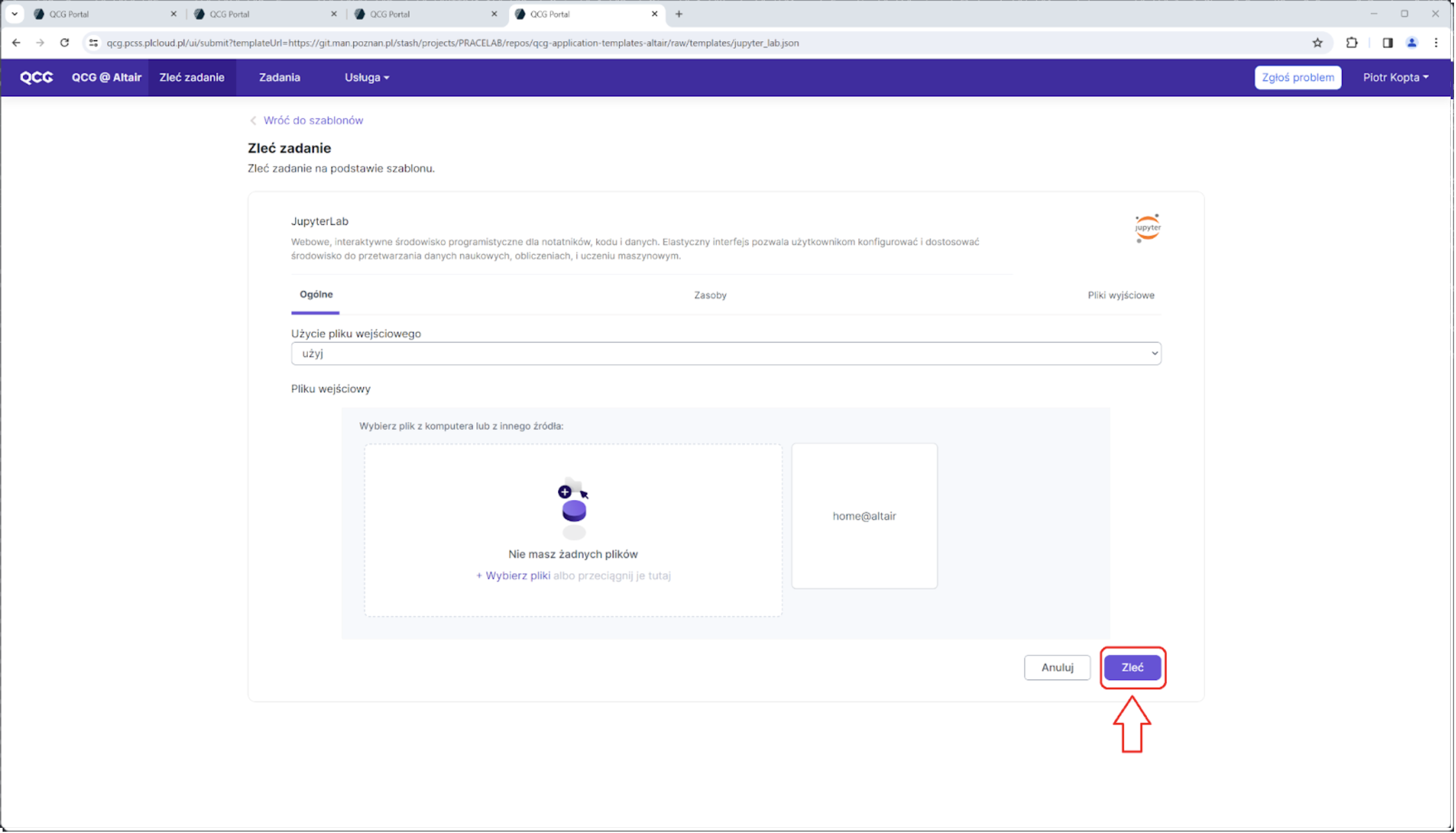
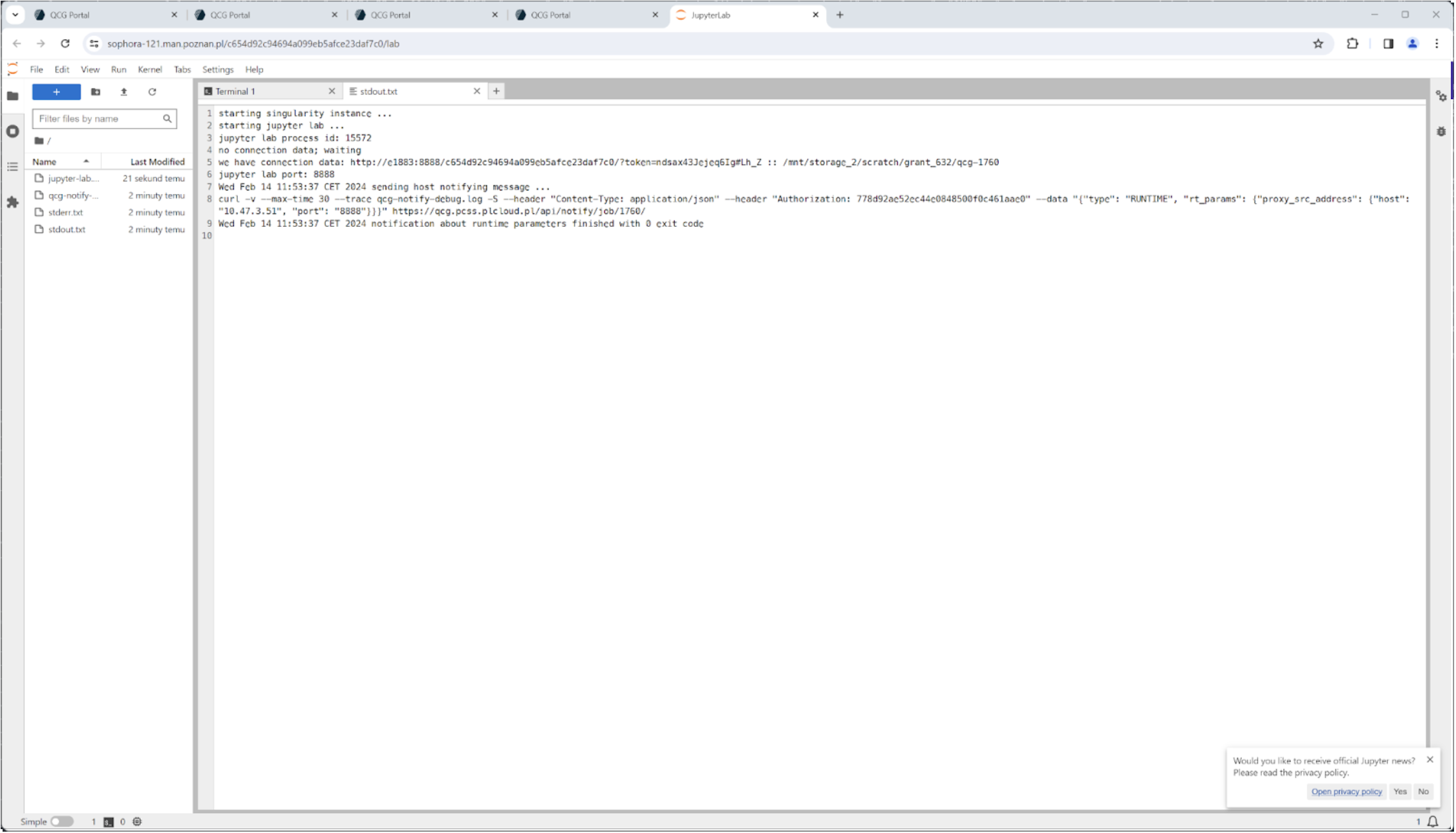
- JupyterLab
- after starting the task in the task details view, click on the VNC containing the link to JupyterLab
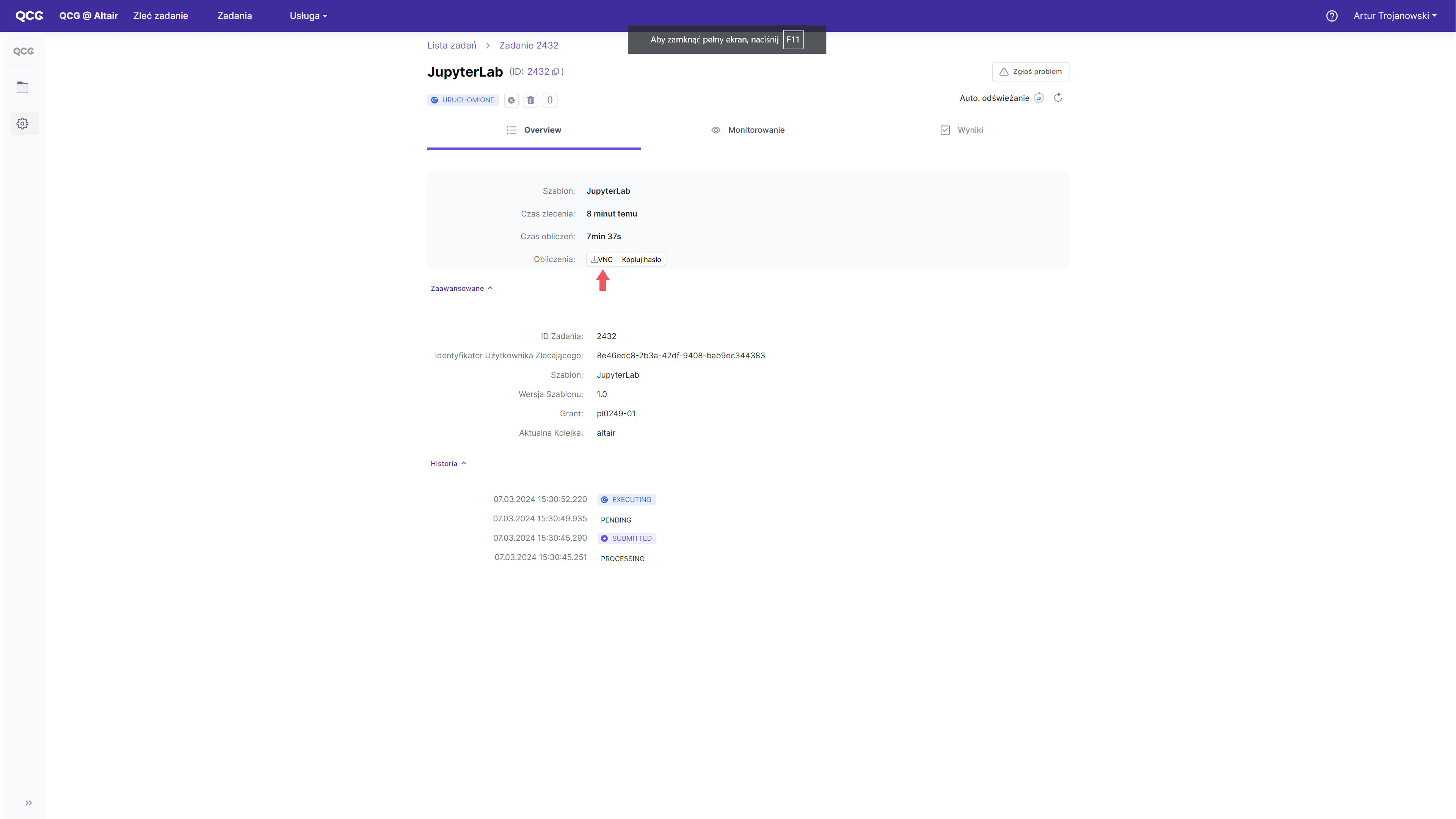
- after selecting this link, a new tab will open in which the interface of the JupyterLab application running on the compute node of the Altair cluster should appear
WARNING
Notes
JupyterLab is run inside a container on the compute node to the container with JupyterLab is mounted user's home directory (without links), and task working directory
due to the way it is run, some of the software available on the cluster
Altair may not be available in the container with JupyterLab.